


Program Startup and Location Services
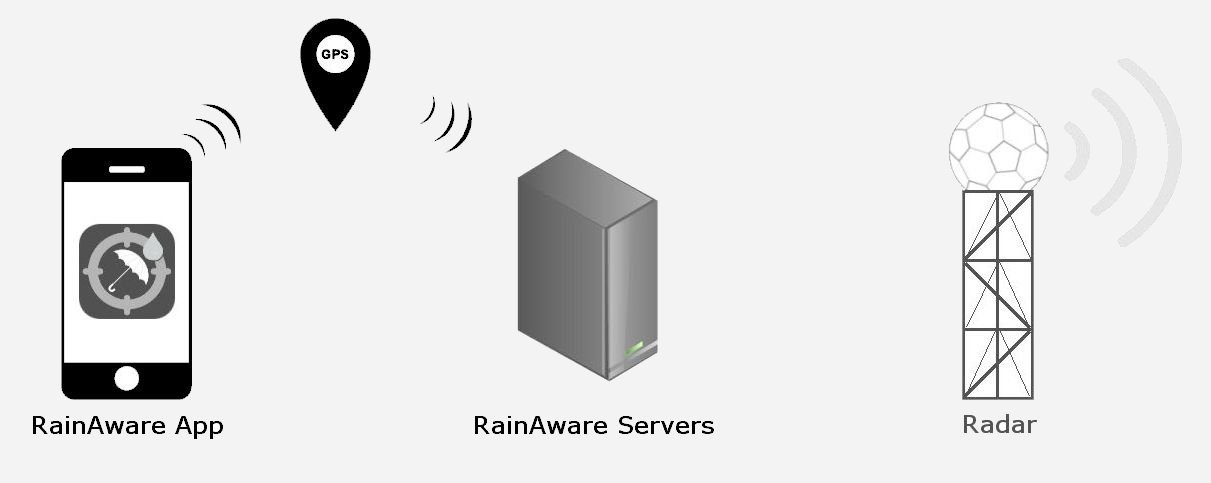
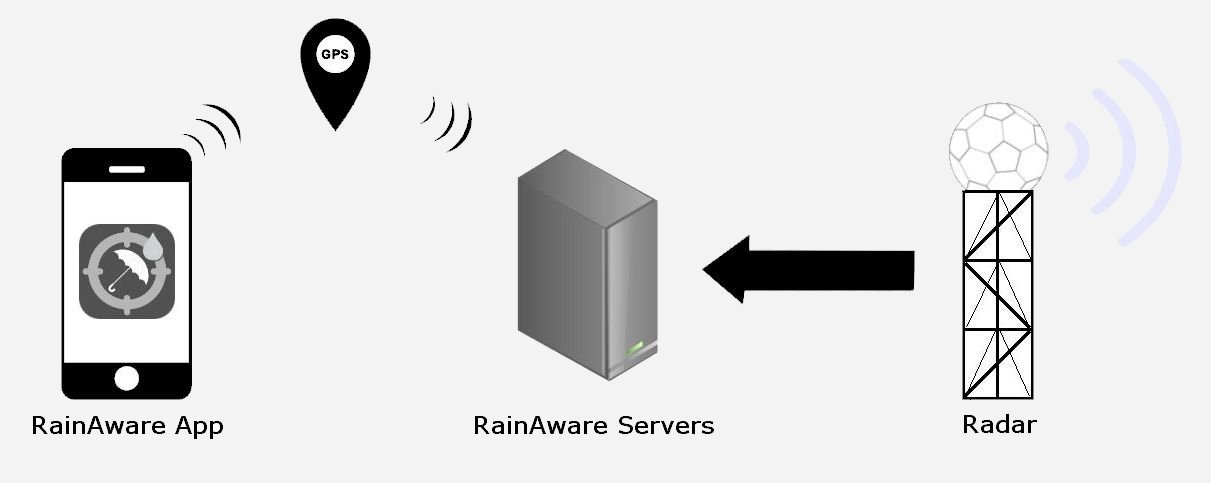
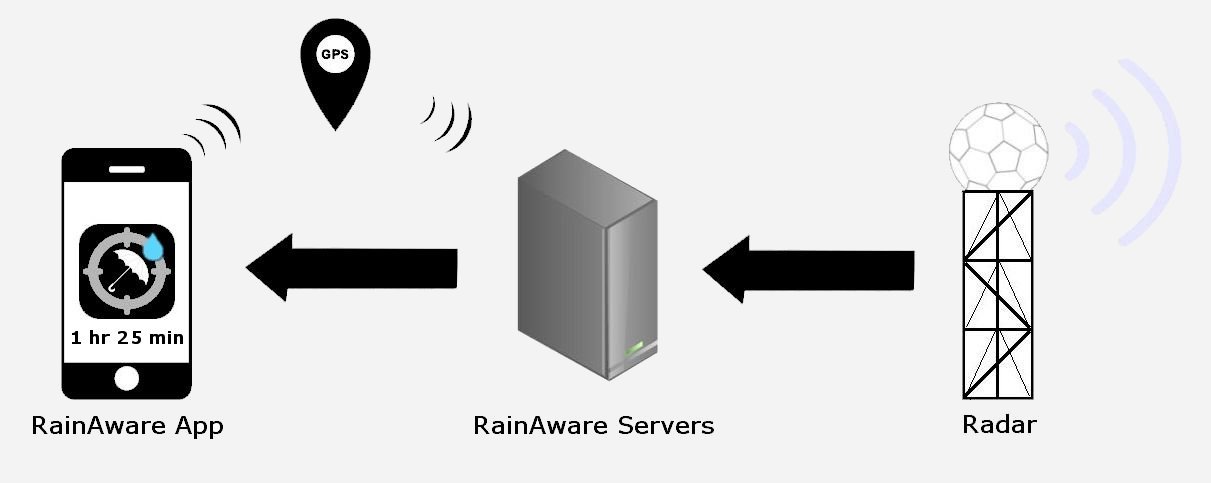
When you open RainAware for the first time, you will be prompted to allow RainAware to use your phone’s location. This will allow us to produce a tailored forecast for you, wherever you may be. RainAware does not know who you are, and your location will remain anonymous. If at any time you would like to disable this feature, you can turn it off by going into your phone’s settings. In iPhone, go to Settings > Location Services > RainAware. You can also turn it back on here if it accidentally becomes disabled.
In version 1.0.0, if RainAware cannot determine your location, a random location is used. Luckily there are multiple ways in which your location can be determined so this usually does not occur unless you do not enable GPS. However, we expect to enable a manual input of location in the coming update.
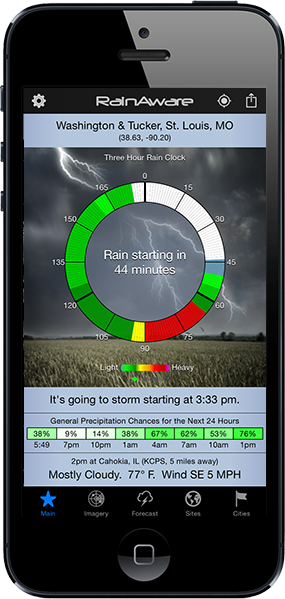
Your location is shown in the”Location Bar” across the top of the screen. Tapping this bar, as well as the “Refresh” button next to it, will force a refresh of your data. You do not have to worry about doing this as RA automatically refreshes every minute, but you may need to in rare instances. Tapping the location bar will also return you to your default/GPS location if you previously switched to a different site.
RainAware Main Screen
Main Window – This is where your precipitation threat is displayed for the next 3 hours. There are three ways to display this data, and you can simply swipe left or right to reveal the other screens. Here is a summary of each screen:
Default Screen – This is the screen you see when you first open RainAware. It consists of a “Text Bubble” which will display precipitation start and end times, if applicable. If there is no threat over the next 3 hours, it will simply display “Dry”.
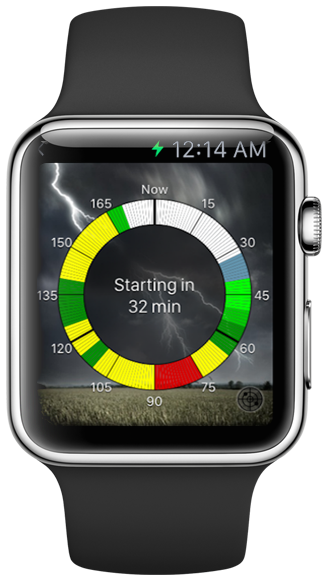
Rain Clock – Swipe to the left to reveal the 1 hour RainClock. Also on this page is a text bubble, similar to the default screen. The RainClock is similar to a stopwatch, where “Now” is always at the top. When precipitation is going to hit you within 1 hour, you will see this clock filled with colors, according to the intensity of the precipitation. Each minute, the “colors” will rotate counter-clockwise until it hits “Now”, in which case, it will be precipitating.
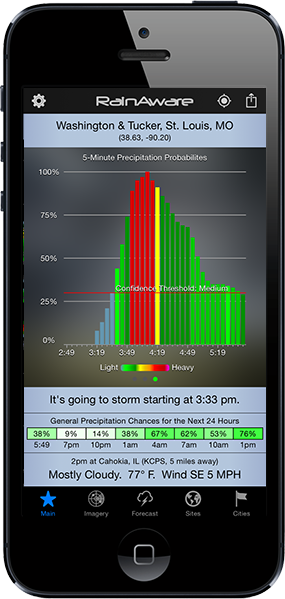
Three Hour Bar Chart – Swipe to the right to reveal the 3 hour bar chart. Each bar is 5 minutes, and the chart spans the next 3 hours. Current time is on the left. Similar to the RainClock, color of the bars indicates intensity. The height of the bars indicates how likely rain is to occur in that exact 5 minute period. Taller bars mean precipitation is more likely. Very short bars mean either showers are very small, or you are on the fringe of an area of precipitation, in which case it will probably miss you.
Terminology
What is “Rain”? – Sounds simple, but we need to define it. Is it drizzle? A few sporadic drops? A steady, street wetting shower? Answer: We try to detect almost all rain, even if very light. We realize some users might not care about very light rain. At the same time, we may not always detect the lightest drizzle. The best thing to do is refer to the color coding on the 1-hour rain clock or on the 3-hour bar graph. If it’s blue, that means very light. If it’s dark green or yellow, that is more moderate rain and everything is getting soaked. Oranges and reds are for heavy thunderstorms. So take note of the intensity color, and plan your activities accordingly!
“Rain is on the way!” – When you see this message, it means that precipitation has been detected upstream of you, and is likely to affect your location within the next 3 hours. The probability of precipitation is ABOVE the red line shown on the bar chart (precipitation threshold).
“There are a few showers in the area” – When you see this message, it typically means very small and/or light showers are in the area, but since they are so sparse, they may not affect you. The probability of precipitation is BELOW the red line shown on the bar chart (the precipitation threshold).
Customized Precipitation Threshold
If you look closely, you will see a red horizontal line across the bar chart. This is your Rain Threshold. The default value is 30% for a 5 minute period. When bars meet or exceed this level, that is when precipitation is forecast to occur, and time estimates are provided. When values fall below this line, RainAware knows there is precipitation nearby, and will continue to monitor for any changes.
You can adjust your rain threshold to meet your needs. Go to the Settings page and choose Low, Medium, or High.
Users who are particularly sensitive to rain may want to choose “Low.” You will probably never be surprised by rain, even light, with this setting. However, this will increase the number of false alarms, or times when rain does not actually occur.
For users who do not want to be alarmed of precipitation unless it is all but certain, the “High” setting is recommended. With this setting, you will receive little false alarm. However, the trade off is that in some instances, the amount of warning time may be decreased.
We recommend the default “Medium” setting, which is the best balance of maximizing long range detection and minimizing false alarms.
Precipitation Ending Times
We require a solid 15 minute span of time with no precipitation in order to say it will “End.” So, if precipitation is only expected to stop for 5 or 10 minutes, then resume, we will not alert you of an ending time, as it will be very short lived. There is no minimum continuous time for onset of precipitation (we will alert you of rain even if it’s only expected to last for 5 minutes).
Sites Page
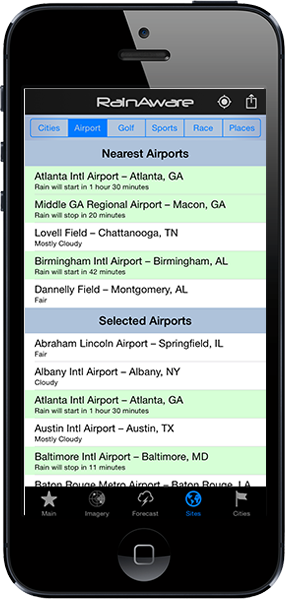
A really nice feature of RainAware is the ability to monitor and also to go to other places. We provide several categories of pre-determined locations close to you, including Cities (downtown areas), Golf Courses, MLB and NFL Stadiums, NASCAR Raceways and miscellaneous Points of Interest.
Easily see if it is going to precipitate at any of your local sites at a glance. For in depth information as if you were there, simply tap a “Site” and wait for it to load. Please note that precipitation times for your sites use your own timezone. To go back to using your GPS location, either tap the “Return to your current location” button that appears on the Sites page, or tap the Location Bar at the top of the Main screen.
Enhanced Backgrounds
In order to enhance the user experience, we have developed smart backgrounds that change depending on weather conditions and time of day. There are several categories of backgrounds, including day and night, dry, rain, heavy rain, thunderstorms, snow and ice. Typically, the user will see a partly cloudy sky when no precipitation is expected. If precipitation is detected, but still several hours away, the background may become cloudy.
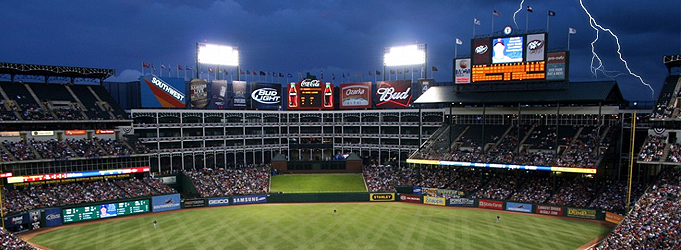
The big changes occur once precipitation is within 1 hour of affecting you. Due to increased confidence, this is when the backgrounds become specific, depicting rainy, stormy, or snowy scenes! For example, you will see vivid lightning for nighttime thunderstorms. You can turn enhanced backgrounds off at any time by going to the Setting page and under “Background Images” choosing “Simple.” This will result in simple color schemes, grey for dry, green for rain, blue with snowflakes for winter precipitation.
Timer Precision
Of course RA attempts to be perfect in its predictions, but in reality, we all know weather can be hard to predict and can change rapidly. Your timers are typically accurate to within 1/2 a mile and 3 minutes by the time rain arrives. You will notice that once precipitation is within 3 minutes of you, we freeze the timer at “< 3 min" and say "It's gonna rain ANY MINUTE!" For longer term predictions, say 2-3 hours out, arrival times will be adjusted as the precipitation gets closer to you, so that by the time it hits, it is very precise. Adjustments are made due to changing shape and size of precipitation over time. With RA, you will be the FIRST to know, as quick as a meteorologist, when conditions change.